🤪 Unexpected Behavior
Launch Error - %AppData% returned empty string
- Open a Wine maintenance shell then type
wineserver -kto terminate all lingering Wine processes. - If that doesn’t resolve it, try switching to a different Wine runner.
- Check that you haven’t changed the default install path in the RSI Launcher settings.
Visual glitches or semi-transparent lines, poor performance, possibly random crashes
- DXVK may be broken or disabled. Reinstall it using the LUG Helper DXVK and maintenance menus
- Your game shader cache may need to be cleared. Use the Delete Shaders option in the RSI Launcher > Settings > Games > {LIVE,PTU} > Delete Local Settings > Shaders folder
Account login failed (possible code 19000)
This is a generic error code representing any issue with logging in to CIG servers
- Expected when attempting launch/login during a patch release
- Kill the launcher and restart it and try again
- Ensure that IPv6 is not disabled
- Check that custom firewall rules on your host or router are not blocking outbound traffic to non-HTTP(S) ports
DirectX error message
- Error may read
Star Citizen requires DirectX feature level of 11.1 as a minimum which is not supported at present on this machine
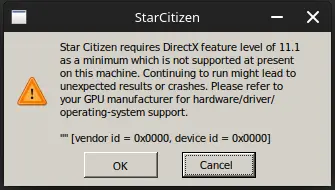
- If your system has an integrated gpu (ie, Intel), check that the
Vulkan deviceis not set to the integrated gpu:- Identify device name using command
vulkaninfo --summary | grep deviceName - Edit the launch script and set the device name environment variable:
DXVK_FILTER_DEVICE_NAME=yourdevicenamehere - Verify by setting the environment variable
DXVK_HUD=1and observing the device name in the upper left of the screen
- Identify device name using command
- Make sure your GPU drivers (Mesa/nvidia) are up to date
- For AMD, be sure to use the open source radeon drivers (ie. vulkan-radeon), not the proprietary drivers (ie. amdvlk)
- For Nvidia, you may need to reboot after installing driver updates to clear this error
- If using DX11 rendering instead of Vulkan, make sure DXVK is enabled/updated:
- Use the LUG Helper to update dxvk
- Try switching to a non-staging wine runner from our recommended runners list
- Try downgrading to an older DXVK version
- Take care to not mix Proton and standard Wine runners on the same prefix. They are not fully compatible and proton may break your prefix.
Failed to initialize dependencies error
- Make sure the
SDL_VIDEODRIVERenvironment variable is NOT set globally towaylandon your system:env | grep SDL_VIDEODRIVER - If it is set, remove it from whichever environment config(s) is setting it.
- Edit the launch script and add
unset SDL_VIDEODRIVERto the environment variables section
Infinite loading screen after clicking ‘Launch’
- The game servers may be overloaded, especially after a new release.
- If launching the game for the first time with a webcam plugged in, try unplugging the webcam, relaunching, then connecting it.
Game hangs at loading screen after clicking ‘Launch’
- If using a webcam, make sure V4L is installed (video 4 linux, package names may be similar to
v4l-utils). If using V4L2 Loopback, try removing any loopback devices you have created.
Black game window after clicking ‘Launch’
- Check our latest news for gpu driver issues or temporary workarounds.
- Contribute to STARC-197175 (public) and STARC-189885 (evocati only), then use the LUG Helper to switch to a
LUG ExperimentalWine runner. - If using DX11 instead of Vulkan, make sure DXVK is installed and up to date.
- If using Vulkan, you may need to revert to DX11 by creating a USER.cfg file.
- If using lsfg-vk for frame gen, use LUG Wine Experimental or revert to DX11.
- If using gamescope, try
GAMESCOPE_WSI_FORCE_BYPASS=1or disable it for now and watch this PR.
Blackout or black screen on Vulkan when flying/boosting/braking/damaged
- Contribute to STARC-179339, then use the LUG Helper to switch to LUG Wine >= 11.5
- If that doesn’t work, try a LUG Experimental wine runner.
Laggy game when using Picom or Compton Compositors
- If you use the Picom or Compton compositor, it may cause a laggy experience despite having high framerates. We recommend disabling the compositor.